Digital Media Data Recovery


Recover Data for Digital Media Recovery - Screenshots
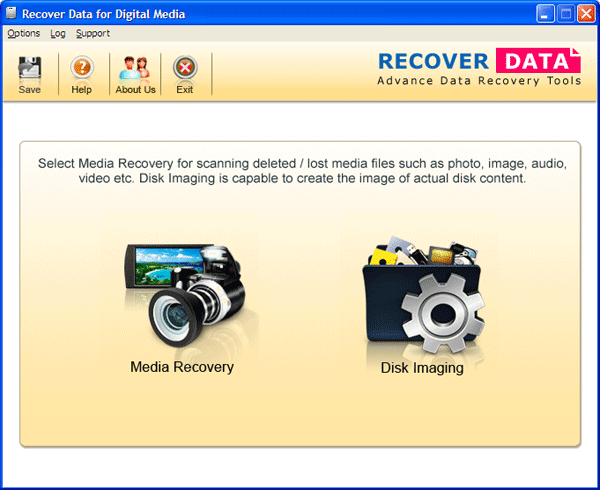
Start up Screen of Recover Data for Digital Media
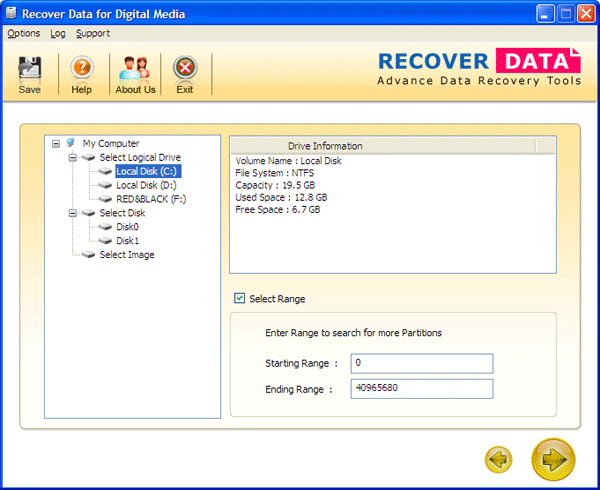
You can check "Select Range", Enter the "Starting Range" & "Ending Range" so that software will search the deleted files in that particular range.
Check on Select All option if you want to recover all file type.
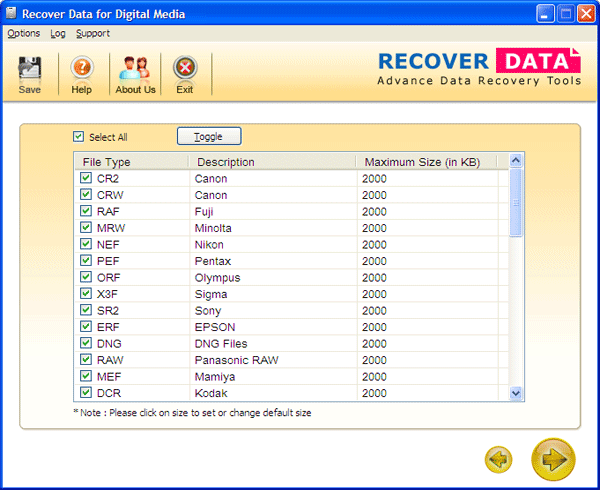
After selecting the files, Recover Data for Digital Media scan the whole logical drive/partition for all files or selected files to recover possible data from selected partition.
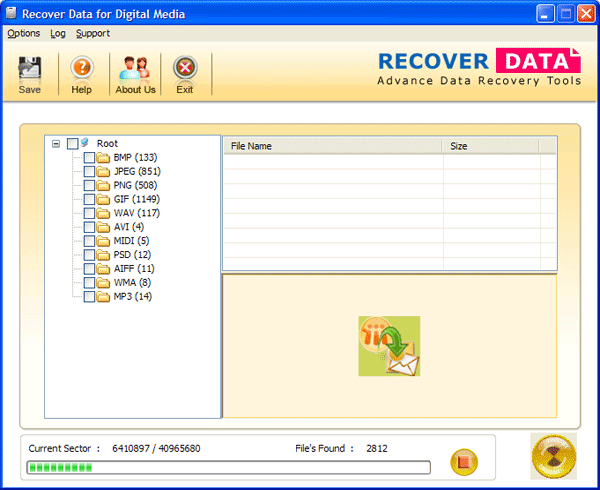
You can stop the recovery process by clicking on  button.
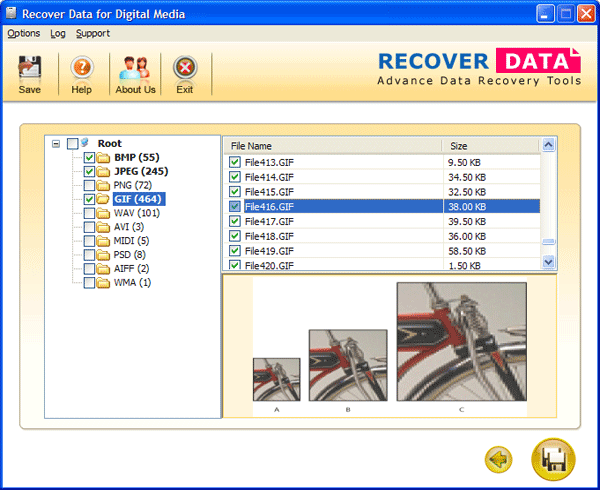
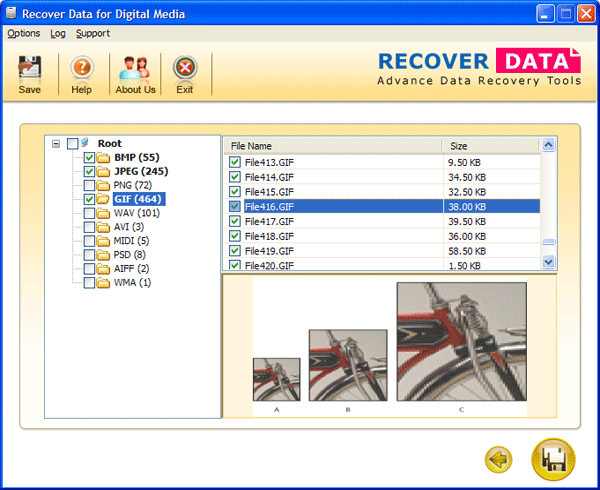
To view the Image click on the file type in the left pane & then select the file name from the right pane to view the respective image.
To listen/view the audio/video click on the file type in the left pane and then select the file name from the right pane to listen/view the respective audio/video.
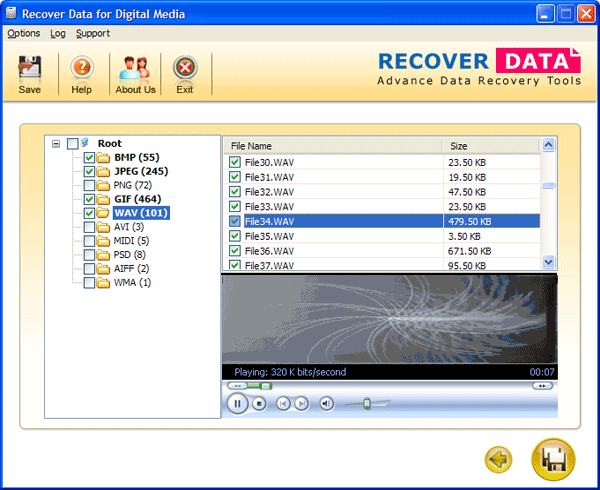
Click on  Button : to save the selected files.